OBS vs. LIV Hub for Meta Quest Streaming
How to build a futureproof relationship with AI
If you're streaming VR gameplay on Meta Quest, you have two main tools to choose from: OBS Studio and LIV Hub. Here's the quick breakdown:
OBS Studio: A PC-based, free, open-source software offering detailed control over stream layouts, overlays, and audio. It requires casting your Quest view to a PC browser and capturing it in OBS. Ideal for those who want customization and professional-grade features.
LIV Hub: A Meta Quest app that streams directly from the headset to platforms like YouTube or Twitch, no PC needed. It offers features like third-person, selfie, and dynamic camera angles in supported games. Perfect for a simple, portable setup.
Quick Comparison
Feature | OBS Studio | LIV Hub |
|---|---|---|
Setup | Requires a PC and browser casting | Direct streaming from headset |
Camera Options | First-person only | First-person, third-person, selfie |
Game Compatibility | Any game via browser casting | Only games with LIV SDK integration |
Audio Handling | Separate tracks (game, mic, etc.) | Combines game and mic audio |
Ease of Use | Moderate to complex | Simple |
Platform Support | Windows, macOS, Linux | Windows only |
Cost | Free | Free (optional subscription for extras starting Jan 2026) |
Choose OBS if you want robust customization and don’t mind using a PC. Go with LIV Hub for a straightforward, PC-free streaming experience with dynamic camera angles in supported games. Both tools are free, so testing each can help you decide which fits your needs best.
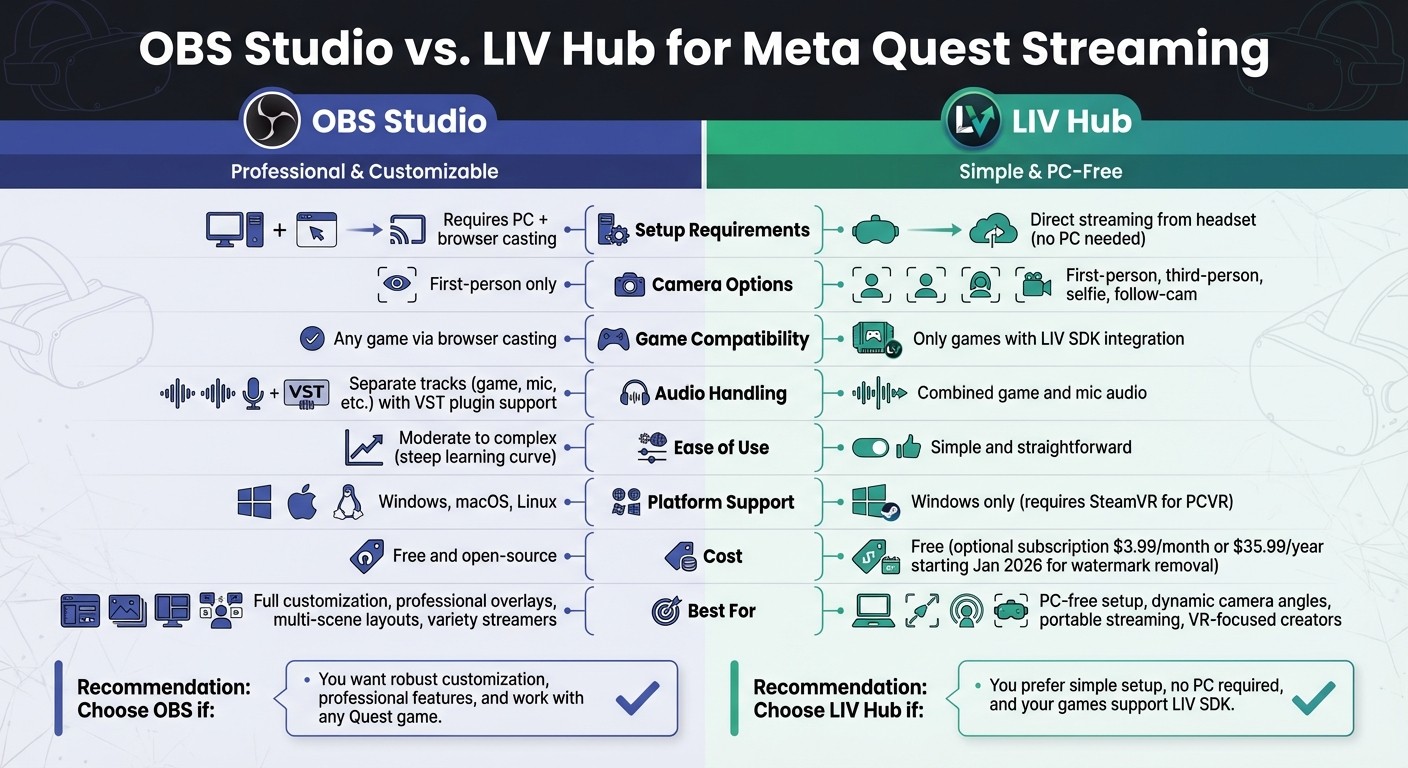
OBS Studio vs LIV Hub for Meta Quest VR Streaming Comparison
How to LiveStream Quest Gameplay To Youtube (PC Method)
How to Set Up OBS for Meta Quest Streaming
Streaming your Meta Quest gameplay using OBS (Open Broadcaster Software) is a straightforward process, but it does require some essential hardware and software. Here's what you'll need: a VR-ready PC, your Meta Quest headset (works with Quest 2, 3, or Pro), and a stable Wi-Fi connection. For the best results, ensure both your PC and headset are connected to the same 5GHz Wi-Fi network. You'll also need to download OBS Studio (free) and have a web browser ready to display your headset's casted feed.
What You Need for OBS
The primary goal is to capture your Quest's display on your PC. To do this, make sure your Quest headset and PC are on the same 5GHz Wi-Fi and logged into the same Meta account. This setup minimizes latency and ensures smooth streaming.
There are two main ways to capture gameplay:
Casting to a browser: Open oculus.com/casting on your browser to view your headset's display.
Wireless PCVR streaming: Use Meta Air Link or Virtual Desktop for a higher-quality connection. For even better results, you can install Quest Developer Hub, though the browser casting method works well for most users.
If you'd rather go wired, you can use a Link Cable to directly connect your Quest to your PC. However, wireless casting is generally more convenient and easier to set up.
Once your hardware and casting method are ready, you can move on to configuring OBS for your stream.
Connecting OBS to Streaming Platforms
After making your Quest feed visible in a browser window, you’ll need to add it to OBS. Use either the Window Capture or Browser source in OBS to include the feed. Next, configure your audio settings by adding Desktop Audio and Mic/Auxiliary Audio sources. To start streaming, paste your platform's Stream Key in OBS under Settings > Stream. Choose the appropriate service, such as "YouTube - RTMPS." You can find the Stream Key in YouTube Studio or your Twitch dashboard.
"When you want to directly interact with your audience in real-time, you can always set up a livestream, and the Open Broadcaster Software (OBS) tool is usually the best way to make it happen." - Digital Trends
For optimal performance, always run OBS as an administrator. Also, remember: never share your Stream Key - anyone with access could broadcast on your channel without your consent. If you're streaming on YouTube, make sure your account is verified with a mobile number to unlock livestreaming features.
Want to see YouTube chat while streaming? In the Quest's Camera menu, select "Cast to browser + YouTube chat." Keep in mind, this feature only works with public streams.
How to Set Up LIV Hub for Meta Quest Streaming
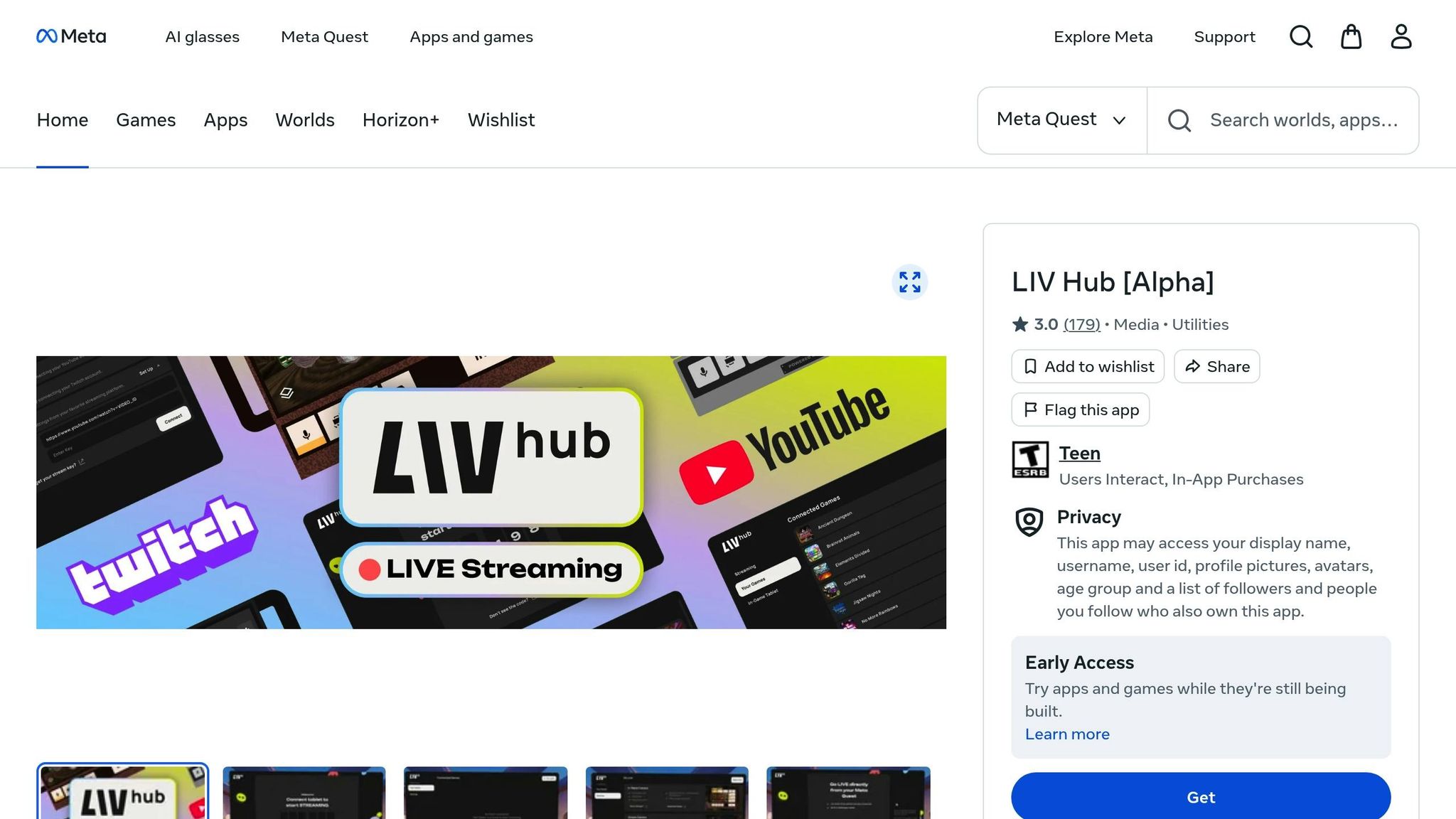
LIV Hub lets you stream directly from your Meta Quest headset - no PC required. This standalone app simplifies the process of managing your stream, linking social accounts, and broadcasting to platforms like YouTube, Twitch, or any RTMP-supported service. Compared to OBS's more complex, PC-based setup, LIV Hub offers a much easier alternative.
LIV Hub's Streaming Options
LIV Hub offers two distinct streaming modes. The first is Headset Streaming, which captures your native first-person view from the headset. The second is LIV Camera Streaming, which provides more dynamic, cinematic angles like selfie and third-person views. However, these advanced camera options are only available for games that support the LIV Creator Kit (LCK) SDK, such as Gorilla Tag, Ancient Dungeon, and Strayed.
The app also works seamlessly with Meta's Presence Platform, enabling features like passthrough, hand tracking, and avatar tracking for mixed reality experiences. To make things even more convenient, LIV Hub captures both microphone and game audio in a single feed, eliminating the audio routing headaches often associated with OBS setups. Both streaming modes are completely free to use.
Setting Up LIV Hub for Streaming
Getting started is easy. First, download the LIV Hub app directly to your Quest headset. Then, launch a supported game. The game will generate a temporary pairing code, which you'll enter into the LIV Hub app. After that, simply add your streaming platform details - whether it's YouTube, Twitch, or an RTMP connection for another service.
Once you're set up, you can control your stream through an in-game tablet interface in VR. This tool allows you to adjust camera angles, tweak settings, and start or stop your broadcast - all without leaving the game. Just make sure you meet your chosen platform’s streaming requirements before you go live.
OBS vs. LIV Hub: Feature Comparison
OBS captures your Meta Quest stream through browser-based casting, while LIV Hub uses an in-game camera via its SDK, offering out-of-engine compositing and greater creative flexibility. Here’s a closer look at how these tools stack up against each other.
The most notable difference lies in their mixed reality functionality. With OBS, setting up mixed reality requires manual source layering, which can be time-consuming. On the other hand, LIV Hub simplifies the process by automating real-time compositing and supporting Meta Quest Presence Platform features like passthrough, hand tracking, and spatial anchors.
Platform compatibility is another key distinction. OBS works across Windows, macOS, and Linux, making it versatile for various setups. LIV Hub, however, is limited to Windows and requires a PCVR setup with Meta Quest Link and SteamVR. OBS can capture any desktop or browser content, while LIV Hub’s advanced features are only available for games integrated with its SDK.
Both tools are free, so your choice largely depends on your workflow and needs. OBS Studio has seen massive adoption, with over 9 billion downloads as of 2025, and holds a 4.6/5 rating on G2. A verified user, Ziya M., shared their experience:
"I like almost everything about this OBS, especially being an open-source software! You get an amazing experience with professional fine tuning options all for free!"
Similarly, LIV Hub is free to download on Steam, making it accessible for those with compatible setups.
Feature Comparison Table
Feature | OBS Studio | LIV Hub |
|---|---|---|
Capture Method | Browser-based casting ( | In-game SDK camera via PCVR (Quest Link) |
Mixed Reality | Manual layering required | Automated real-time compositing |
Platform Support | Windows, macOS, Linux | Windows only (requires SteamVR) |
Quest Features | Standard video/audio capture | Passthrough, hand tracking, spatial anchors |
Game Compatibility | Any content on desktop/browser | Requires LIV SDK integration |
Learning Curve | Steep; manual setup needed | Moderate; needs SDK-supported games |
Audio Handling | Separate tracks with VST plugin support | Combined game and mic audio capture |
Cost | Free and open-source | Free on Steam |
Both OBS and LIV Hub provide powerful solutions for Meta Quest streaming, but their differences in features and ease of use cater to distinct user preferences. Whether you prioritize platform flexibility or advanced mixed reality capabilities will likely guide your decision.
Pros and Cons of OBS
Understanding the strengths and weaknesses of OBS can help determine when it’s the right tool for the job.
OBS Studio stands out for its adaptability, especially when streaming from Meta Quest. As a free, open-source platform, it allows you to create intricate layouts by combining your Quest feed with webcams, overlays, and backgrounds. Its built-in audio mixer includes tools like noise suppression and compressors, and hardware encoders like NVENC help reduce CPU usage during high-resolution streams. Plus, you can record high-quality footage in formats like MP4, MKV, or MOV while streaming live. It’s compatible with Windows, macOS, and Linux, making it accessible across different systems.
But OBS isn’t without its challenges, particularly for beginners.
"While with Twitch Studio all you have to do is sign in with your Twitch account and then get started, OBS is a blank sheet of paper, so to speak, waiting for you to write on it"
The setup process can feel cumbersome, especially when casting your headset and capturing the browser window. It’s not as straightforward as some other platforms.
Another hurdle is its resource demand. Running OBS alongside VR content can put a heavy load on your CPU, GPU, and memory, potentially leading to choppy video or audio issues. To avoid this, you might need to tweak settings - like lowering the resolution to 720p, reducing frame rates to 30fps, or choosing specific hardware encoders. Laptops, in particular, may struggle due to thermal throttling, where overheating causes the processor to slow down, leading to dropped frames.
OBS’s standard capture can also present a limited field of view and jerky motion, which can be disorienting for viewers. As user worldwise001 from shh.sh points out:
"As the wearer of the headset you don't notice [jerky movement] since your eyes naturally lock onto targets... however for external viewers it can be very disorienting"
While OBS itself is efficient, using only about 0.7% to 1.3% of CPU resources during streaming, the multi-step casting process for Quest introduces additional complexities and potential points of failure compared to direct SDK-based capture methods.
For those willing to invest the time to learn OBS and who have capable hardware, the software offers incredible flexibility. You can create polished scene transitions, stream to any platform supporting RTMPS, and expand its capabilities with a wide range of plugins. However, be prepared to rely on external tutorials and spend time fine-tuning settings to get everything working seamlessly.
Next, we’ll dive into the benefits and limitations of LIV Hub.
Pros and Cons of LIV Hub
LIV Hub brings a mix of exciting features and some clear limitations, making it a specialized tool for VR streaming enthusiasts.
One of LIV Hub's standout strengths is its simplicity and focus on VR-specific features. Meta's official capture solution allows you to stream directly from your Quest headset to platforms like YouTube and Twitch. The entire setup is handled within the LIV Hub app on your Quest, where you can link streaming accounts and manage broadcasts seamlessly. It's designed to be lightweight, prioritizing smooth performance with minimal jitter. As the LIV team puts it:
"We've spent years building the most performant XR video capture & encoding stack in the world, so that you can run it in your apps without any jitter".
LIV Hub also introduces creative streaming options. The LIV Camera feature goes beyond standard first-person views, offering selfie, third-person, and follow-cam modes in supported games. This functionality has proven to be a game-changer for some developers. According to the Twisted Barrel developer:
"Adding the LIV camera has given Tactical Assault VR an incredibly wide audience reach".
These cinematic streaming modes are free, though there’s an optional subscription for removing watermarks and accessing cosmetic perks.
That said, LIV Hub has its downsides. The most notable limitation is game compatibility. It only works with games that have integrated the LIV Creator Kit SDK, meaning not all Quest titles are supported. This contrasts sharply with tools like OBS, which can stream virtually any game via a universal browser-casting approach. For PCVR streaming, LIV Hub only supports SteamVR titles. Additionally, running LIV for PCVR requires a high-performance "VR Ready" PC, as the system essentially runs the game twice - once for your headset and once for capture.
Wireless streaming also has its own requirements. You’ll need a WiFi 6/6E router for optimal performance, and some mixed reality modes require manual adjustments, like disabling the proximity sensor via the Meta Quest Developer Hub. While LIV Hub simplifies many aspects of streaming, it can't bypass platform-specific rules. For instance, streaming on TikTok still requires you to meet the platform’s 1,000-follower minimum to obtain a stream key.
These advantages and limitations highlight what LIV Hub brings to the table, helping you decide if it’s the right fit for your streaming needs.
Which Tool Should You Choose?
Opt for OBS if you're using a PC and want full control over your stream with professional overlays. On the other hand, go with LIV Hub if you prefer a PC-free setup and dynamic camera angles in supported games.
If you're working with a PC and aiming for polished streams featuring custom overlays and multi-scene layouts, OBS is the way to go. It's completely free and works seamlessly with any Quest game via browser casting from oculus.com/casting. With OBS, you can fine-tune your livestream settings, including bitrates (3,000–6,000 bits per second is recommended) and encoding. Plus, it allows you to combine VR and non-VR content in the same broadcast, making it a versatile choice for streamers.
However, if you don't have a PC or prefer a simpler setup, LIV Hub lets you stream directly from your Quest headset to platforms like YouTube, Twitch, or any RTMP service - no extra hardware required. Its straightforward setup is perfect for creators who want to start streaming quickly. LIV Hub stands out in games that support advanced camera modes, offering cinematic angles like third-person, selfie, and follow modes - features not available with OBS’s first-person-only view. As the developer of Gorilla Tag said:
"Giving anyone the ability to create higher quality content without needing a PC or knowledge of mods is amazing".
Here’s a closer look at when each tool excels.
Best Use Cases for OBS
OBS is ideal for creators seeking flexibility and professional production quality. If you're a variety streamer juggling VR and traditional PC games, OBS consolidates everything into one powerful tool. Its advanced scene management allows you to design polished intros, outros, and seamless transitions, elevating your stream beyond basic gameplay footage.
Another advantage of OBS is its compatibility with Meta Quest's native casting feature, which lets you view YouTube live chat directly in your headset. This universal compatibility ensures you can stream nearly any VR game, including new releases, without waiting for developer support.
Best Use Cases for LIV Hub
LIV Hub is perfect for VR-focused creators who value unique camera perspectives over technical customization. Its standalone streaming capability allows you to broadcast from virtually anywhere - whether you're showcasing VR to friends or streaming on the go, there's no need to lug around a PC.
The standout feature of LIV Hub is its ability to leverage LIV Camera capabilities in supported games. Showing yourself from a third-person perspective or switching to selfie mode creates engaging and dynamic content that goes beyond standard first-person gameplay. Walkabout Mini Golf developer Mighty Coconut shared:
"We added LIV for our 34th course... and it was an immediate hit with players who are already embracing the tools and making a variety of cool content that just wasn't possible before".
If your favorite games support these features and you want hassle-free streaming with dynamic visuals, LIV Hub is a great choice. Just keep in mind that starting January 1, 2026, removing watermarks will require an optional subscription priced at $3.99/month or $35.99/year.
Final Thoughts
When it comes to streaming with Meta Quest, OBS and LIV Hub each bring something different to the table. OBS is all about giving you full control - custom overlays, multi-scene layouts, and a PC-based setup that works with any Quest game via browser casting. On the other hand, LIV Hub focuses on simplicity and mobility, streaming directly from the headset while offering cinematic angles for games that support the LIV Creator Kit SDK.
Deciding between the two boils down to your priorities. If you’re after advanced customization and don’t mind using a PC, OBS might be your go-to. But if you value the freedom to stream without extra hardware and your favorite games support LIV’s advanced camera features, LIV Hub could be the better fit.
The good news? Both tools are free for their core features. OBS is fully open-source, and LIV Hub made its camera streaming feature free starting December 18, 2025.
Here’s the best way to figure out what works for you: try both tools. Use OBS if you need complex scene transitions or are playing games without LIV integration. Opt for LIV Hub if your favorite games support its advanced cameras and you prefer a more portable setup. Your gaming and streaming habits will quickly point you to the tool that matches your style.
FAQs
What makes LIV Hub a better option than OBS for streaming VR content from Meta Quest?
LIV Hub makes streaming from a Meta Quest headset incredibly simple by allowing you to broadcast directly - no PC or complicated casting setup required. Compare that to OBS, which involves casting your headset to a desktop and manually configuring video settings in the software. It’s a much smoother experience with LIV Hub.
What makes LIV Hub stand out is its built-in features, like camera calibration, mixed-reality compositing, and a super-easy three-click setup - all managed directly within the headset. It also includes handy tools such as a viewfinder, artificial zoom, custom masks, and flexible output options, making the entire process quick and straightforward.
On top of that, LIV supports over 800 VR games and is compatible with all Meta Quest models (1, 2, 3, Pro) as well as other PC-VR headsets. This wide compatibility gives creators more freedom to work with their favorite devices right from the start.
Does LIV Hub work with all VR games, or are there restrictions?
LIV Hub works seamlessly with a vast selection of VR games - over 800 titles to be exact. That said, it doesn't support every VR game out there. Only the games included in its library are compatible. To avoid any surprises, make sure to check if your favorite game is on the list before diving in.
What’s the difference between setting up OBS and LIV Hub for streaming Meta Quest gameplay?
If you're using OBS to stream your Meta Quest gameplay, the process can be a bit of a hassle. First, you need to cast your Quest view to a PC, then configure OBS manually. This involves connecting the Quest to a desktop browser, adding the browser window as a source in OBS, logging into your streaming platform, and finally starting the stream. It's a multi-step setup and requires access to a PC.
On the other hand, LIV Hub makes things much easier by running everything directly on the Quest itself. Once you download the app, you can quickly calibrate your camera in VR with just a few clicks. There's no need to cast to a PC or go through a lengthy setup. LIV Hub streamlines the entire process, saving time and effort while letting you jump straight into streaming your VR gameplay.